How to Create an MDX Blog in Next.js
In this tutorial, we will learn how to create a static blog using Next.js and MDX. All the code for this tutorial can be found in this GitHub repository.
Installation
We will start by setting up a new Next.js project by following the instructions in the Next.js documentation.
Create a new Next.js project using the following command:
npx create-next-app@latestWhen prompted, you can choose the following options:
√ What is your project named? mdx-blog-nextjs
√ Would you like to use the recommended Next.js defaults? » Yes, use recommended defaults
Choosing the recommended defaults will automatically add Tailwind CSS and TypeScript to our project.
Next, navigate to the project directory and start the dev server:
cd mdx-blog-nextjs
npm run dev
Next, we need to add the Tailwind CSS Typography plugin to style our blog posts. You can find the installation instructions in the Tailwind CSS Typography documentation.
Run the following command to install the plugin:
npm install -D @tailwindcss/typographyThen add the plugin to your app/globals.css file:
@import "tailwindcss";
@plugin "@tailwindcss/typography";
We will be using Shadcn UI components in this tutorial. Let's install the required dependencies for Shadcn UI by following the instructions in the Shadcn UI documentation.
To install the required dependencies, run the following command:
npx shadcn@latest initLet's add the required components from Shadcn UI to our project. Run the following command:
npx shadcn@latest add card
npx shadcn@latest add button
npx shadcn@latest add dropdown-menu
Let's also install the next-themes package. We will need this to enable dark mode support in our blog.
npm install next-themesNext, we need to install the required dependencies for MDX support in Next.js. We will be using gray-matter to parse the front-matter and next-mdx-remote to render MDX files.
Run the following command to install these dependencies:
npm i gray-matter next-mdx-remoteWe also need to install rehype-pretty-code to add syntax highlighting to code blocks in our blog. You can read more about this in rehype-pretty-code documentation
Run the following command to install these dependencies:
npm install rehype-pretty-code shikiAlso add the following styles to the globals.css file to enable the dual theme, line highlighting, and inline code highlighting support for our code blocks.
@layer base {
  * {
    @apply border-border outline-ring/50;
  }
  body {
    @apply bg-background text-foreground;
  }

  pre[data-theme*=" "],
  pre[data-theme*=" "] span,
  code[data-theme*=" "],
  code[data-theme*=" "] span {
    color: var(--shiki-light) !important;
    background-color: var(--shiki-light-bg) !important;
    font-style: var(--shiki-light-font-style) !important;
    font-weight: var(--shiki-light-font-weight) !important;
    text-decoration: var(--shiki-light-text-decoration) !important;
  }

  html.dark pre[data-theme*=" "],
  html.dark pre[data-theme*=" "] span,
  html.dark code[data-theme*=" "],
  html.dark code[data-theme*=" "] span {
    color: var(--shiki-dark) !important;
    background-color: var(--shiki-dark-bg) !important;
    font-style: var(--shiki-dark-font-style) !important;
    font-weight: var(--shiki-dark-font-weight) !important;
    text-decoration: var(--shiki-dark-text-decoration) !important;
  }

  pre code > span[data-highlighted-line],
  pre code > span[data-highlighted-line] span {
    background-color: oklch(0.95 0 0) !important;
  }

  html.dark pre code > span[data-highlighted-line],
  html.dark pre code > span[data-highlighted-line] span {
    background-color: #3b3d42 !important;
  }

  code[data-theme*=" "]::before,
  code[data-theme*=" "]::after,
  html.dark code[data-theme*=" "]::before,
  html.dark code[data-theme*=" "]::after {
    display: none;
  }

  .prose pre code > span[data-line] {
    @apply px-4 lg:px-6;
  }
}
Finally, let's install some other utility packages.
npm i date-fns server-only reading-timeWe have installed all the required packages. Now our package.json looks like this:
{
  "name": "mdx-blog-nextjs",
  "version": "0.1.0",
  "private": true,
  "scripts": {
    "dev": "next dev",
    "build": "next build",
    "start": "next start",
    "lint": "eslint"
  },
  "dependencies": {
    "@radix-ui/react-dropdown-menu": "^2.1.16",
    "@radix-ui/react-slot": "^1.2.4",
    "class-variance-authority": "^0.7.1",
    "clsx": "^2.1.1",
    "date-fns": "^4.1.0",
    "gray-matter": "^4.0.3",
    "lucide-react": "^0.556.0",
    "next": "16.0.7",
    "next-mdx-remote": "^5.0.0",
    "next-themes": "^0.4.6",
    "react": "19.2.0",
    "react-dom": "19.2.0",
    "reading-time": "^1.5.0",
    "rehype-pretty-code": "^0.14.1",
    "server-only": "^0.0.1",
    "shiki": "^3.19.0",
    "tailwind-merge": "^3.4.0"
  },
  "devDependencies": {
    "@tailwindcss/postcss": "^4",
    "@tailwindcss/typography": "^0.5.19",
    "@types/node": "^20",
    "@types/react": "^19",
    "@types/react-dom": "^19",
    "eslint": "^9",
    "eslint-config-next": "16.0.7",
    "tailwindcss": "^4",
    "tw-animate-css": "^1.4.0",
    "typescript": "^5"
  }
}
Adding MDX Content
Now let's add some blog content. Create content folder in root of your project. Inside content folder, create blog folder and images folder.
Add some images that you want to add to the blogs in the content/images folder. I am adding black-car.jpg and blue-car.jpg for the demo purpose.
Add the following demo blogs to the content/blog folder.
---
title: "This is Blog 1"
publishedAt: "2024-04-09"
summary: "This is the summary of blog 1."
---
Hello, this is blog 1.
## This is h2
Lorem ipsum, dolor sit amet consectetur adipisicing elit. Asperiores perspiciatis blanditiis voluptatibus minima alias quibusdam ipsum cumque omnis facere. Ratione cumque id saepe quos fugiat! Pariatur hic rem reprehenderit perferendis.
Lorem ipsum, dolor sit amet consectetur adipisicing elit. Asperiores perspiciatis blanditiis voluptatibus minima alias quibusdam ipsum cumque omnis facere. Ratione cumque id saepe quos fugiat! Pariatur hic rem reprehenderit perferendis.
This is link to [blog 2](/blog-2)
This is an external link to [GitHub](https://github.com)
---
title: "This is Blog 2"
publishedAt: "2024-04-10"
summary: "This is the summary of blog 2."
---
Hello, this is blog 2.
## This is h2
Lorem ipsum, dolor sit amet consectetur adipisicing elit. Asperiores perspiciatis blanditiis voluptatibus minima alias quibusdam ipsum cumque omnis facere.
### This is h3
Ratione cumque id saepe quos fugiat! Pariatur hic rem reprehenderit perferendis.
This is link to [blog 1](/blog-1)
This is an external link to [GitHub](https://github.com)
Creating blog utils
Now that we have the content, we need to create the utility functions to read the MDX files from our file system.
Inside lib/blog.ts add the following functions.
import "server-only";

import fs from "fs";
import path from "path";
import matter from "gray-matter";

type FrontMatter = {
  title: string;
  publishedAt: string;
  summary: string;
};

export type BlogPost = {
  frontMatter: FrontMatter;
  content: string;
  slug: string;
};

const BLOG_DIR = path.join(process.cwd(), "content", "blog");

export const getBlogSlugs = () => {
  const files = fs
    .readdirSync(BLOG_DIR)
    .filter((file) => path.extname(file) === ".mdx");

  const slugs = files.map((file) => file.replace(/\.mdx$/, ""));

  return slugs;
};

export const getBlogPostBySlug = (slug: string) => {
  const filePath = path.join(BLOG_DIR, `${slug}.mdx`);
  const fileContents = fs.readFileSync(filePath, "utf-8");

  const { data, content } = matter(fileContents);

  return { frontMatter: data, content, slug } as BlogPost;
};

export const getAllBlogPosts = (): BlogPost[] => {
  const slugs = getBlogSlugs();
  const posts = slugs
    .map((slug) => getBlogPostBySlug(slug))
    .sort((a, b) =>
      a.frontMatter.publishedAt < b.frontMatter.publishedAt ? 1 : -1
    );

  return posts;
};
The getBlogSlugs function reads files from the content/blog folder and returns the file names without extension like blog-1, blog-2, etc. We can use this as part of the URL for the blogpost page.
The getBlogPostBySlug function reads the MDX file for the slug, parses it using gray-matter and returns the front-matter and content. We will be using this function in the blogpost page to get the blog data.
The getAllBlogPosts function returns the array of all the blogpost sorted in the descending order of the published date. We will be using this function in the blog home page to display all the blogpost.
Blog Home Page
Now let's start working on our blog home page.
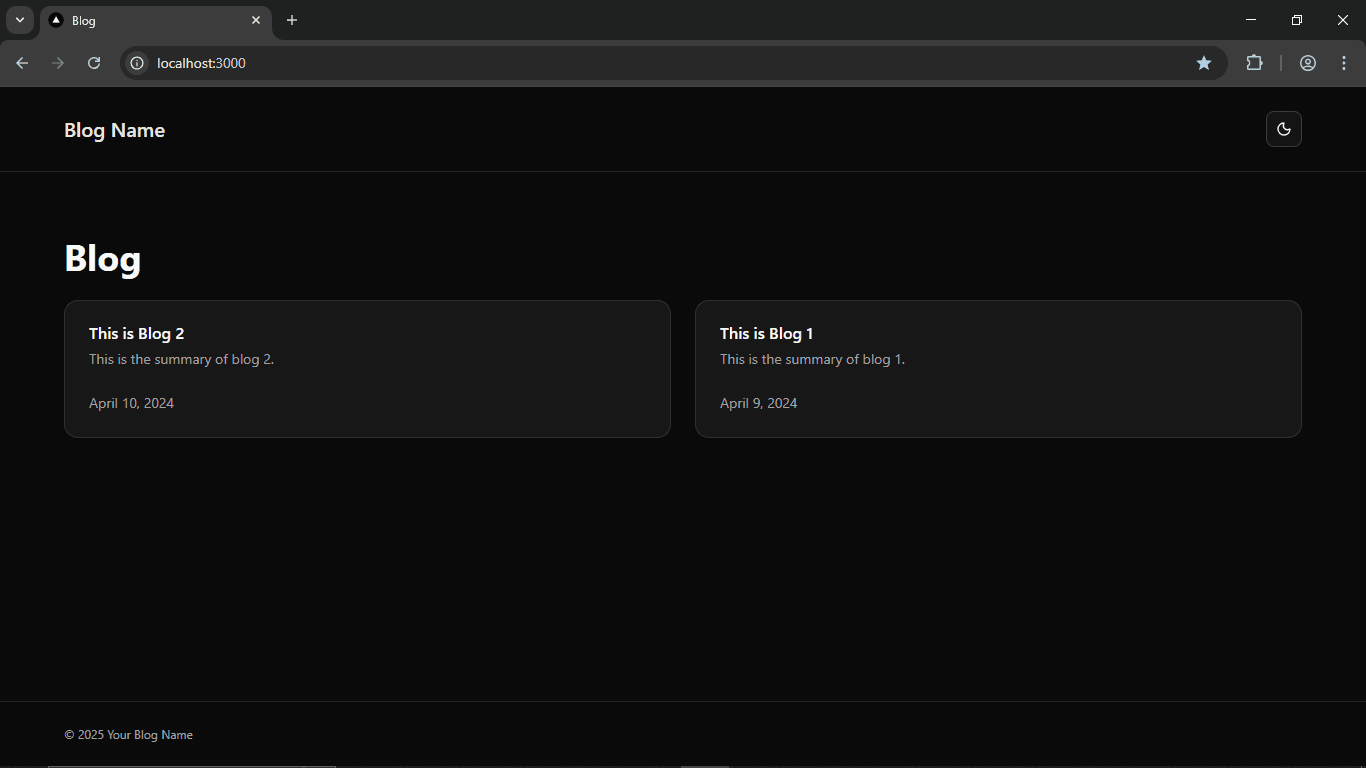
Let's first create BlogCard component. In components/blog-card.tsx add the following code.
import Link from "next/link";
import { format } from "date-fns";

import {
  Card,
  CardDescription,
  CardFooter,
  CardHeader,
  CardTitle,
} from "@/components/ui/card";
import { BlogPost } from "@/lib/blog";

interface BlogCardProps {
  blogPost: BlogPost;
}

export const BlogCard = ({ blogPost }: BlogCardProps) => {
  const {
    frontMatter: { title, summary, publishedAt },
    slug,
  } = blogPost;
  return (
    <Link href={`/${slug}`} className="block h-full">
      <Card className="h-full">
        <CardHeader>
          <CardTitle>{title}</CardTitle>
          <CardDescription>{summary}</CardDescription>
        </CardHeader>

        <CardFooter className="flex items-end flex-1">
          <p className="text-sm text-muted-foreground">
            {format(new Date(publishedAt), "MMMM d, yyyy")}
          </p>
        </CardFooter>
      </Card>
    </Link>
  );
};
To create the blog page, add the following code in app/page.tsx.
import { Metadata } from "next";
import { BlogCard } from "@/components/blog-card";

import { getAllBlogPosts } from "@/lib/blog";

export const metadata: Metadata = {
  title: "Blog",
  description: "Articles on web development, JavaScript, Next.js, and more.",
};

export default function Blog() {
  const blogPosts = getAllBlogPosts();

  return (
    <main className="px-4 sm:px-8 lg:px-16 space-y-6">
      <h1 className="text-4xl font-bold">Blog</h1>
      <div className="grid gap-6 grid-cols-1 md:grid-cols-[repeat(auto-fit,minmax(20rem,1fr))]">
        {blogPosts.map((blogPost) => (
          <BlogCard key={blogPost.slug} blogPost={blogPost} />
        ))}
      </div>
    </main>
  );
}
In this page, we are just fetching all the blogpost data using getAllBlogPosts function and displaying it in cards. Users can click on these cards to visit the individual blog page.
Blogpost Page
Now let's start working on individual blogpost page. But before that we have to create the custom MDX components for link and image.
Let's first create MdxLink component. We are creating this component because for links in our blogpost we want to use <Link> component from next/link for local links and <a target="_blank" rel="noopener noreferrer"> for external links.
import Link from "next/link";

export const MdxLink = ({
  href = "#",
  children,
  ...props
}: React.AnchorHTMLAttributes<HTMLAnchorElement>) => {
  const isExternal = href.startsWith("http://") || href.startsWith("https://");

  if (isExternal) {
    return (
      <a href={href} target="_blank" rel="noopener noreferrer" {...props}>
        {children}
      </a>
    );
  }

  return (
    <Link href={href} {...props}>
      {children}
    </Link>
  );
};
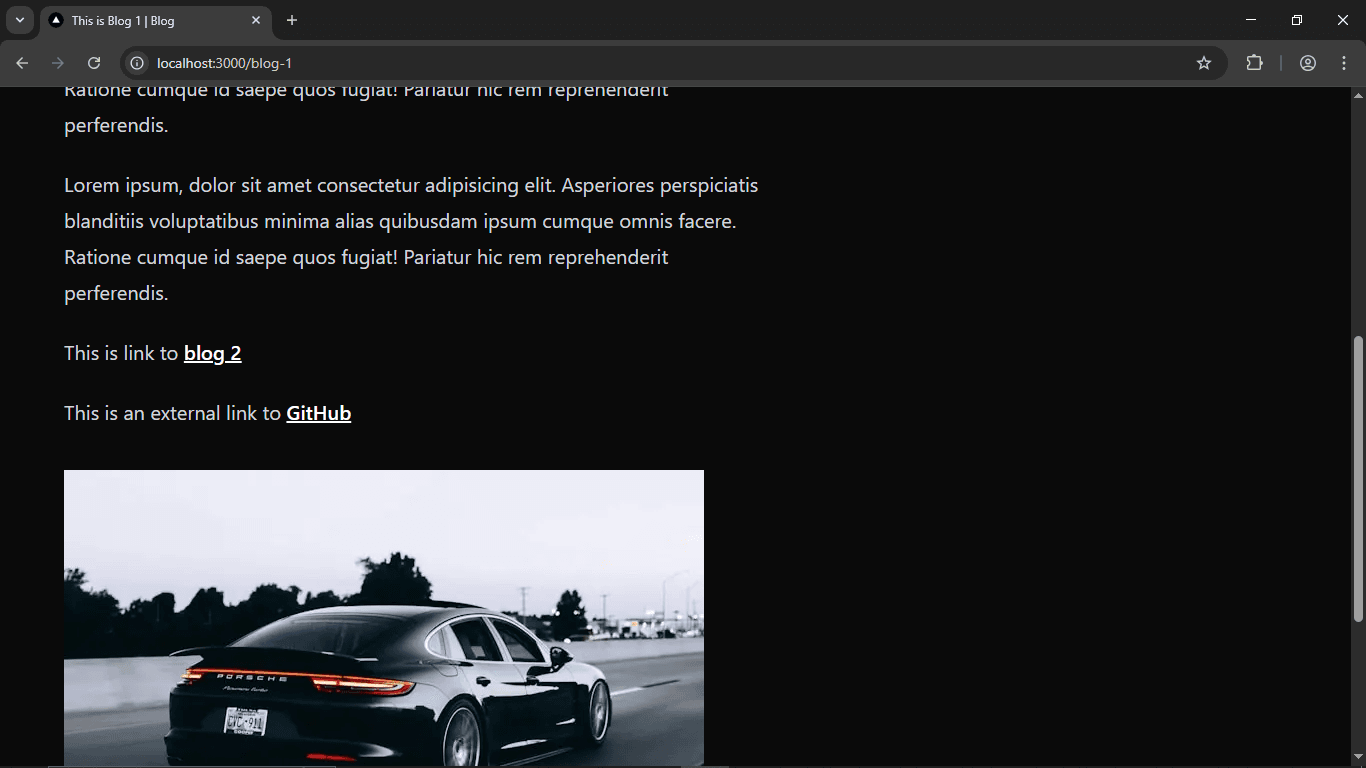
Let's create the MdxImage component. We are creating this component because for images we want to use the <Image> component from next/image and also we want to import the images statically instead of loading it using URL.
import Image, { StaticImageData } from "next/image";

import BlueCarImage from "@/content/images/blue-car.jpg";
import BlackCarImage from "@/content/images/black-car.jpg";

type ImageFileName = "black-car.jpg" | "blue-car.jpg";

interface MdxImageProps {
  src: ImageFileName;
  alt: string;
}

const imageMap: Record<ImageFileName, StaticImageData> = {
  "black-car.jpg": BlackCarImage,
  "blue-car.jpg": BlueCarImage,
};

export const MdxImage = ({ src, alt }: MdxImageProps) => {
  if (!imageMap[src]) {
    throw new Error(
      `Invalid image path: ${src}. Valid paths must be of type ImageFileName.`
    );
  }

  return <Image src={imageMap[src]} alt={alt} placeholder="blur" />;
};
We can include images in our blogs like this:
Do not pass any external image url as src. Because in our MdxImage component, we are using src just as a key to map to the statically imported image. If you want to use a image in a blog, then just put that image in content/images folder and import it in MdxImage and include it in the imageMap.
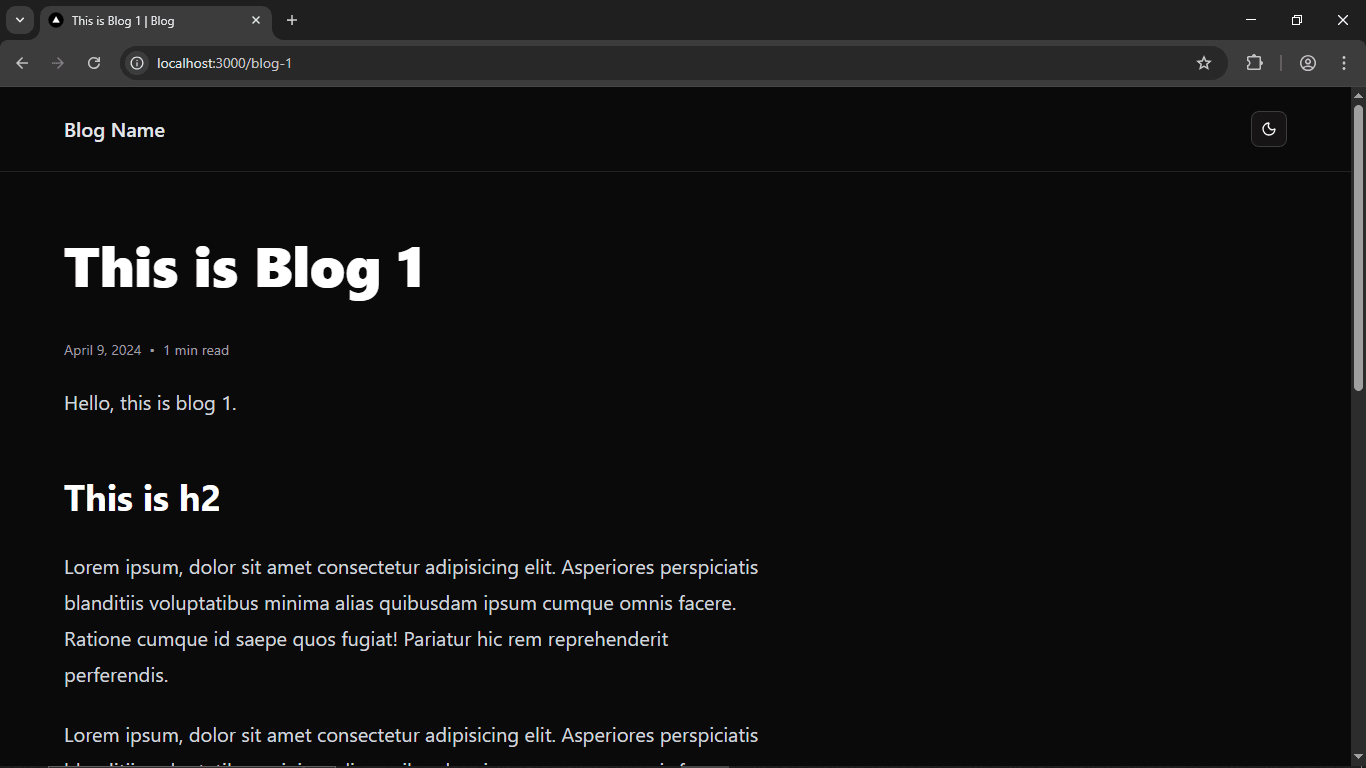
Now let's create the individual blogpost page. In app/[slug]/page.tsx add the following code.
import { Metadata } from "next";
import { format } from "date-fns";
import { MDXRemote } from "next-mdx-remote/rsc";
import rehypePrettyCode from "rehype-pretty-code";
import readingTime from "reading-time";

import { MdxLink } from "@/components/mdx-link";
import { MdxImage } from "@/components/mdx-image";

import { getBlogPostBySlug, getBlogSlugs } from "@/lib/blog";

export const dynamicParams = false;

export async function generateStaticParams() {
  const slugs = getBlogSlugs();
  return slugs.map((slug) => ({ slug }));
}

export async function generateMetadata({
  params,
}: {
  params: Promise<{ slug: string }>;
}): Promise<Metadata> {
  const { slug } = await params;
  const blogPost = getBlogPostBySlug(slug);
  const {
    frontMatter: { title, summary },
  } = blogPost;

  return {
    title: `${title} | Blog`,
    description: summary,
  };
}

export default async function BlogPost({
  params,
}: {
  params: Promise<{ slug: string }>;
}) {
  const { slug } = await params;
  const blogPost = getBlogPostBySlug(slug);
  const {
    frontMatter: { title, publishedAt },
    content,
  } = blogPost;

  const { text: readTime } = readingTime(content);

  return (
    <main className="px-4 sm:px-8 lg:px-16 space-y-6">
      <article className="prose dark:prose-invert lg:prose-xl prose-pre:px-0">
        <h1>{title}</h1>
        <div className="text-sm text-muted-foreground flex gap-2">
          <span>{format(new Date(publishedAt), "MMMM d, yyyy")}</span>
          <span>•</span>
          <span>{readTime}</span>
        </div>
        <MDXRemote
          source={content}
          components={{ a: MdxLink, img: MdxImage }}
          options={{
            mdxOptions: {
              rehypePlugins: [
                [
                  rehypePrettyCode,
                  {
                    theme: {
                      dark: "github-dark",
                      light: "one-light",
                    },
                  },
                ],
              ],
            },
          }}
        />
      </article>
    </main>
  );
}
Here we are using generateStaticParams and we have set dynamicParams to false to make this route static. All our blogpost pages will be generated at build time only. If user enters a slug for the blogpost that is not present in our content/blog folder, then the 404 page will be returned for it.
export const dynamicParams = false;

export async function generateStaticParams() {
  const slugs = getBlogSlugs();
  return slugs.map((slug) => ({ slug }));
}
We are getting the blogpost data using getBlogPostBySlug function.
const { slug } = await params;
const blogPost = getBlogPostBySlug(slug);
We are using reading-time package to calculate the reading time for our blogpost.
const { text: readTime } = readingTime(content);We are using Tailwind CSS Typography classes to style our blogpost.
<article className="prose dark:prose-invert lg:prose-xl prose-pre:px-0">We are using MDXRemote component from next-mdx-remote/rsc to display the MDX content as JSX. We are passing our custom MDX components so that instead <a> our MdxLink gets rendered and instead of <img> our MdxImage component gets rendered. We have also added the rehypePrettyCode plugin with dual theme to add syntax highlighting to our code blocks.
<MDXRemote
  source={content}
  components={{ a: MdxLink, img: MdxImage }}
  options={{
    mdxOptions: {
      rehypePlugins: [
        [
          rehypePrettyCode,
          {
            theme: {
              dark: "github-dark",
              light: "one-light",
            },
          },
        ],
      ],
    },
  }}
/>
Dark Mode
Now let's add header, footer and dark mode. You can read more about how to add dark mode in Shadcn in Shadcn documentation.
Create a theme provider
"use client";

import * as React from "react";
import { ThemeProvider as NextThemesProvider } from "next-themes";

export function ThemeProvider({
  children,
  ...props
}: React.ComponentProps<typeof NextThemesProvider>) {
  return <NextThemesProvider {...props}>{children}</NextThemesProvider>;
}
Add the ThemeProvider to your root layout and add the suppressHydrationWarning prop to the html tag.
import type { Metadata } from "next";
import "./globals.css";

import { ThemeProvider } from "@/components/theme-provider";

export const metadata: Metadata = {
  title: "Blog",
  description: "Articles on web development, JavaScript, Next.js, and more.",
};

export default function RootLayout({
  children,
}: Readonly<{
  children: React.ReactNode;
}>) {
  return (
    <html lang="en" suppressHydrationWarning>
      <body className={`antialiased`}>
        <ThemeProvider
          attribute="class"
          defaultTheme="system"
          enableSystem
          disableTransitionOnChange
        >
          {children}
        </ThemeProvider>
      </body>
    </html>
  );
}
Create a ModeToggle component.
"use client";

import * as React from "react";
import { Moon, Sun } from "lucide-react";
import { useTheme } from "next-themes";

import { Button } from "@/components/ui/button";
import {
  DropdownMenu,
  DropdownMenuContent,
  DropdownMenuItem,
  DropdownMenuTrigger,
} from "@/components/ui/dropdown-menu";

export function ModeToggle() {
  const { setTheme } = useTheme();

  return (
    <DropdownMenu>
      <DropdownMenuTrigger asChild>
        <Button variant="outline" size="icon">
          <Sun className="h-[1.2rem] w-[1.2rem] scale-100 rotate-0 transition-all dark:scale-0 dark:-rotate-90" />
          <Moon className="absolute h-[1.2rem] w-[1.2rem] scale-0 rotate-90 transition-all dark:scale-100 dark:rotate-0" />
          <span className="sr-only">Toggle theme</span>
        </Button>
      </DropdownMenuTrigger>
      <DropdownMenuContent align="end">
        <DropdownMenuItem onClick={() => setTheme("light")}>
          Light
        </DropdownMenuItem>
        <DropdownMenuItem onClick={() => setTheme("dark")}>
          Dark
        </DropdownMenuItem>
        <DropdownMenuItem onClick={() => setTheme("system")}>
          System
        </DropdownMenuItem>
      </DropdownMenuContent>
    </DropdownMenu>
  );
}
Create Header component and add the ModeToggle to header.
import Link from "next/link";

import { ModeToggle } from "@/components/theme-toggle";

export const Header = () => {
  return (
    <header className="border-b">
      <div className="px-4 sm:px-8 lg:px-16 py-6 flex justify-between items-center">
        <Link
          href="/"
          className="font-semibold text-xl text-gray-800 dark:text-gray-200"
        >
          Blog Name
        </Link>

        <ModeToggle />
      </div>
    </header>
  );
};
Create Footer component.
export const Footer = () => {
  return (
    <footer className="border-t px-4 sm:px-8 lg:px-16 py-6 text-xs text-muted-foreground">
      <p>© {new Date().getFullYear()} Your Blog Name</p>
    </footer>
  );
};
Add Header and Footer to app/layout.tsx
import type { Metadata } from "next";
import "./globals.css";

import { ThemeProvider } from "@/components/theme-provider";
import { Header } from "@/components/header";
import { Footer } from "@/components/footer";

export const metadata: Metadata = {
  title: "Blog",
  description: "Articles on web development, JavaScript, Next.js, and more.",
};

export default function RootLayout({
  children,
}: Readonly<{
  children: React.ReactNode;
}>) {
  return (
    <html lang="en" suppressHydrationWarning>
      <body className={`antialiased`}>
        <ThemeProvider
          attribute="class"
          defaultTheme="system"
          enableSystem
          disableTransitionOnChange
        >
          <div className="min-h-screen flex flex-col gap-16">
            <Header />
            <div className="flex-1">{children}</div>
            <Footer />
          </div>
        </ThemeProvider>
      </body>
    </html>
  );
}
We have completed our MDX blog. After this if you want you can also add dynamic opengraph-image for each blogpost and other metadata like rss.xml, sitemap.xml, and robots.txt.
Build
Now let's build our project using the following command:
npm run buildThis is our build output. As we can see our blog is completely static.
> mdx-blog-nextjs@0.1.0 build
> next build

   ▲ Next.js 16.0.7 (Turbopack)

   Creating an optimized production build ...
 ✓ Compiled successfully in 10.2s
 ✓ Finished TypeScript in 5.6s
 ✓ Collecting page data using 3 workers in 2.1s
 ✓ Generating static pages using 3 workers (6/6) in 1929.1ms
 ✓ Finalizing page optimization in 13.2ms

Route (app)
┌ ○ /
├ ○ /_not-found
└ ● /[slug]
  ├ /blog-1
  └ /blog-2


○  (Static)  prerendered as static content
●  (SSG)     prerendered as static HTML (uses generateStaticParams)